Why WordPress Tutorials Are Essential for Building Your Online Presence

WordPress tutorials are your key to opening the world’s most powerful website building platform. Whether you’re a freelancer looking to create client sites or a small agency owner wanting to deliver professional results without a development team, mastering WordPress opens doors.
Quick Answer: What You’ll Learn from WordPress Tutorials
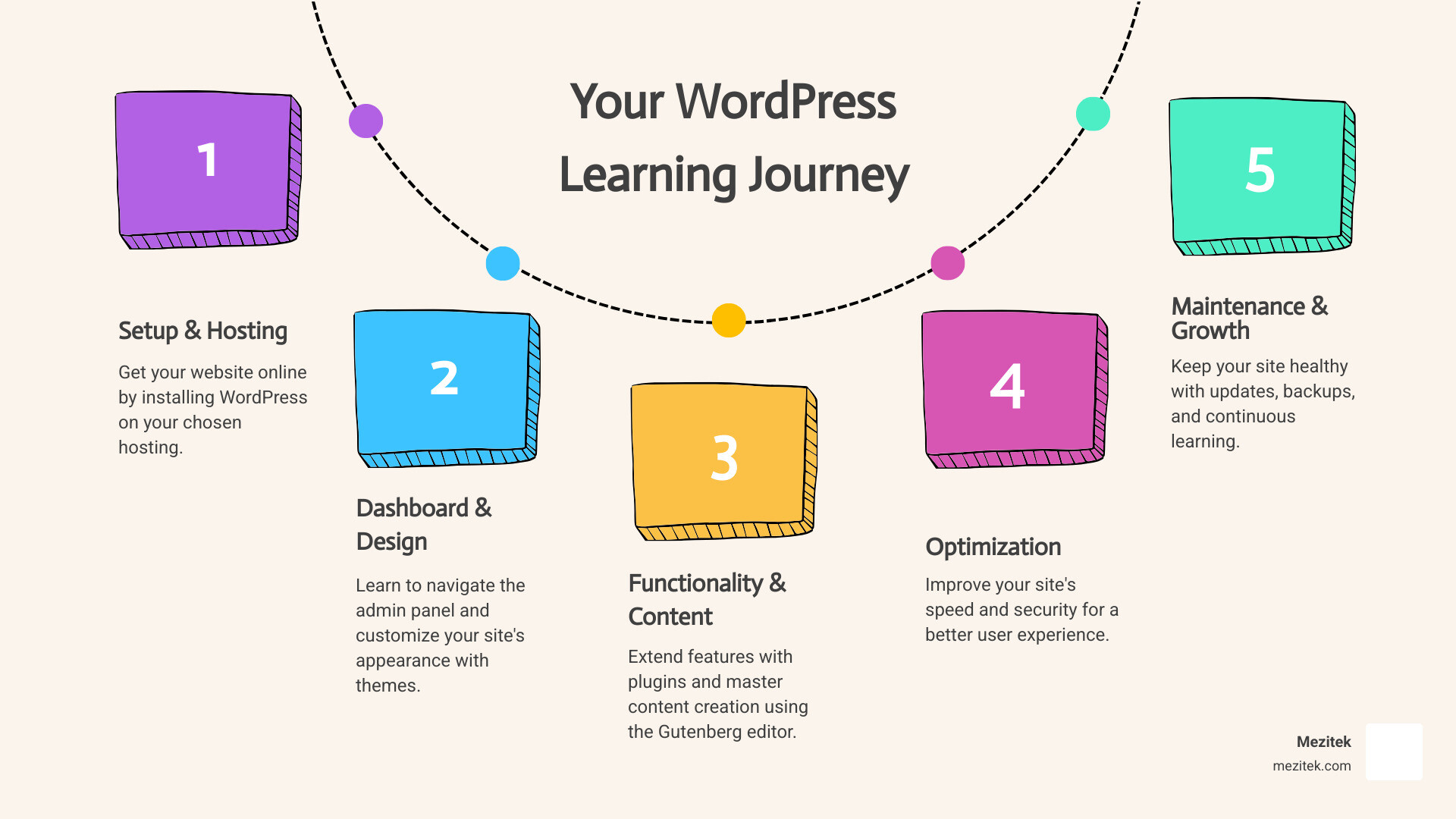
- Installation & Setup – Get WordPress running on your hosting in minutes
- Dashboard Navigation – Master the control center of your website
- Themes & Design – Choose and customize your site’s appearance
- Plugins & Features – Add functionality without writing code
- Content Creation – Use the Gutenberg editor to build pages and posts
- Optimization – Keep your site fast, secure, and updated
WordPress powers over 43% of all websites on the internet. That’s more than 455 million sites globally. This massive market share exists for good reason.
As an open-source Content Management System (CMS), WordPress gives you complete control over your website. You’re not locked into proprietary platforms or expensive monthly fees. The software itself is free, though you’ll need hosting and a domain name.
Thanks to a vast community and countless online resources, it’s easier than ever to learn how to build and manage a professional website. The beauty of WordPress lies in its flexibility. Build a simple blog, a complete e-commerce store, or a professional portfolio. No coding required. The platform scales with your ambitions.
For freelancers and small agencies, WordPress represents opportunity. Your clients need websites. You can deliver them efficiently using themes, plugins, and the intuitive block editor. The large community means help is always available when you get stuck.
This guide walks you through everything you need to know. From your first installation to advanced optimization techniques, we’ve organized the essential knowledge into clear, actionable steps.
Getting Started: Building Your WordPress Foundation

This section covers the essential first steps to get your website live. We’ll explain the core concepts and get you set up for success.
What is WordPress and why is it so popular?
At its heart, WordPress is an open-source Content Management System (CMS). Think of a CMS as a software application that helps you create, manage, and modify content on a website without needing specialized technical knowledge or coding skills. It handles all the “behind-the-scenes” stuff, allowing you to focus on what you want your website to do.
WordPress started as a simple blogging platform in 2003, but it has evolved into a powerhouse capable of building almost any type of website imaginable. Its popularity stems from several key factors:
- Ease of Use: You don’t need to be a developer to build a professional website. Its intuitive interface and block editor make content creation straightforward.
- Flexibility and Scalability: From personal blogs to complex e-commerce stores, WordPress can do it all. It grows with your needs, allowing you to add features as your business expands.
- Vast Ecosystem: There are thousands of free and premium themes to control your site’s design and tens of thousands of plugins to add functionality. Whatever you want your site to do, there’s likely a plugin for it.
- Strong Community Support: With such a massive user base, help is always just a forum post away.
- Cost-Effective: The software itself is free, keeping initial investment low.
Self-Hosted WordPress: The Best Path for Full Control
When we talk about WordPress, we’re usually referring to WordPress.org, the self-hosted version. This is where you download the free software, install it on your web hosting, and have complete control over every aspect of your site.
The alternative is WordPress.com, which is a commercial service that hosts your WordPress site for you. While it offers a simpler setup, it comes with limitations on customization, plugin installation, and monetization unless you opt for more expensive plans. For full freedom, flexibility, and the ability to truly own your website, we always recommend self-hosted WordPress.org.
Here’s why self-hosted WordPress is the best choice for freelancers and small business owners:
| Advantage | Description |
|---|---|
| Full Control | You decide exactly how your site looks, works, and grows over time. |
| Flexibility | Install any compatible theme or plugin, and integrate your favorite tools and services. |
| Cost-Effectiveness | Start with low ongoing costs and scale only when you need more resources. |
| Ownership | Your content and data live on your own hosting account, under your control. |
| Monetization Freedom | Set up any revenue model you like, from client projects to e-commerce, memberships, or ads. |
Mezitek focuses on helping you get the most from this self-hosted approach so you keep control while still working in a low-code way.
Minimum Requirements & Installation Guide
Before we dive into the fun stuff, let’s talk about the technical bits. WordPress has some minimum requirements for your web server to run smoothly. These include:
- PHP: Version 7.4 or greater (though we always recommend the latest stable version for performance and security).
- MySQL: Version 5.7 or greater, OR MariaDB version 10.3 or greater.
- HTTPS Support: WordPress strongly recommends an HTTPS connection for security.
You can always check the official WordPress requirements for the most up-to-date information.
Now, for the exciting part: installing WordPress on your website! This might sound daunting, but most modern web hosts, including Mezitek, offer incredibly simple ways to get started.
- Choosing a Domain Name: Your domain name is your website’s address (e.g., yourwebsite.com). Choose something memorable and relevant to your brand.
- Web Hosting: This is where your website’s files live on the internet. Mezitek provides excellent Mezitek WordPress Hosting designed for speed and reliability.
- One-Click Installation: Many hosting providers offer “one-click” WordPress installers. You simply log into your hosting control panel, find the WordPress installer, fill in a few details like your site title and admin username/password, and click “Install.” WordPress is set up in minutes.
- Manual Installation (Overview): You can also download WordPress from WordPress.org, upload the files to your server via FTP, create a MySQL database, and then run the installation script. Our How to Set Up a WordPress Site guide has more detailed steps if you ever need to go this route.
Remember to choose a strong, unique password and a non-default username during installation. “Admin” and “password” are like leaving your front door wide open!
Navigating Your Site: The Dashboard, Themes, and Plugins
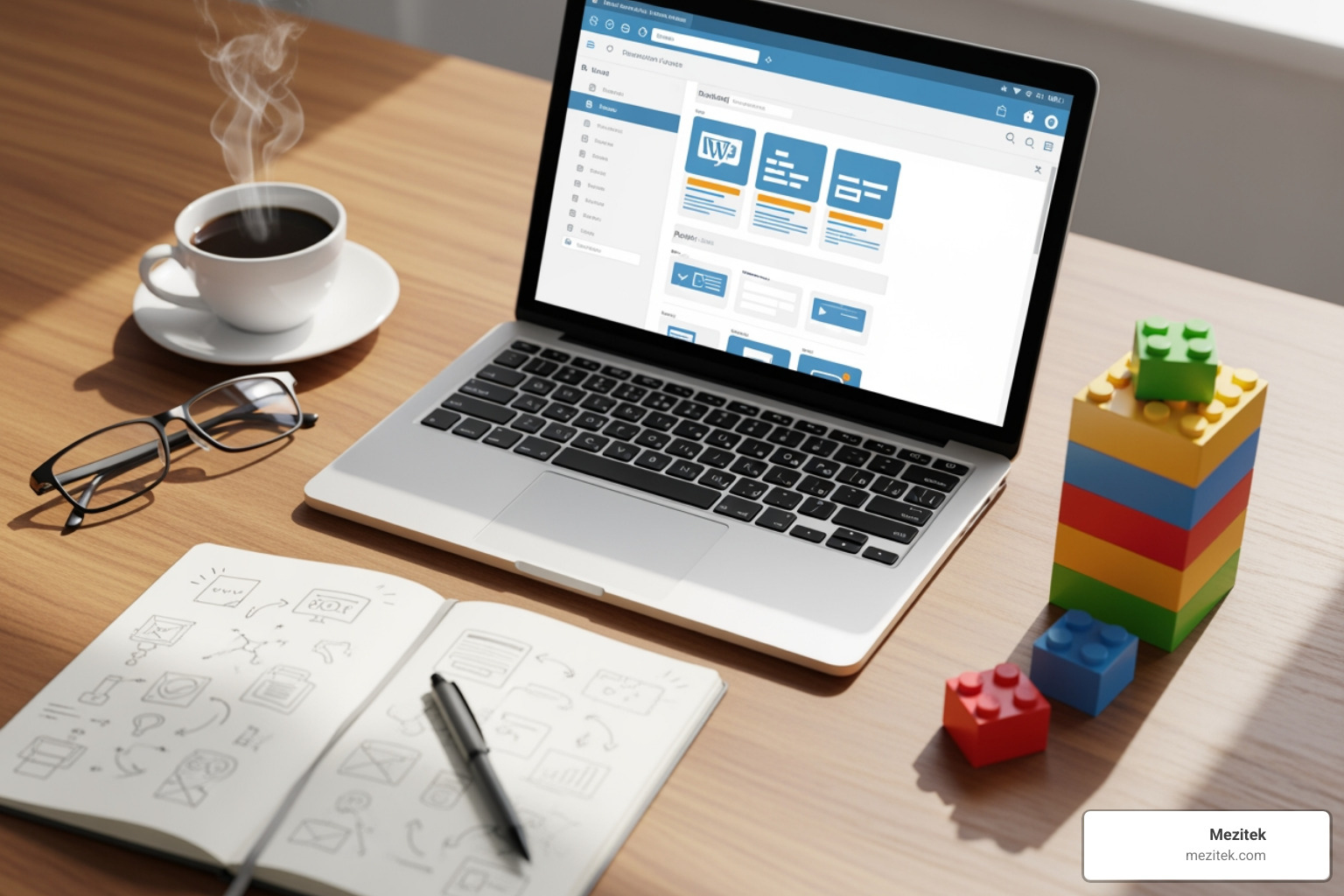
Once WordPress is installed, you’ll be greeted by the WordPress dashboard – your website’s control center. This is where the magic happens!
Exploring the WordPress Dashboard
To access your dashboard, simply go to yourdomain.com/wp-admin (replace yourdomain.com with your actual domain). You’ll log in with the username and password you created during installation.
The dashboard provides an overview of your site and quick access to all its features. Here are some key areas:
- Admin Panel Overview: The main dashboard screen gives you a quick snapshot of your site’s health, recent activity, and WordPress news.
- Screen Options: Found at the top right of most admin pages, this allows you to customize which modules are visible on your screen. Don’t like the “Welcome” box? Hide it!
- At a Glance: Shows you how many posts, pages, and comments your site has.
- Activity: Displays recently published posts and comments.
- Quick Draft: A handy tool to quickly jot down a post idea.
- Site Health Status: Provides important information about your WordPress configuration and any recommended improvements.
- Main Navigation Menu: This vertical menu on the left side is your primary way to steer. You’ll find links for:
- Posts: For blog articles and news updates.
- Media: Your library for images, videos, and other files.
- Pages: For static content like “About Us” or “Contact.”
- Comments: To manage visitor feedback.
- Appearance: Where you manage themes, customize design, and add widgets.
- Plugins: To add new features to your site.
- Users: To manage who has access to your site and their roles.
- Tools: For importing/exporting content, site health, etc.
- Settings: Where you configure general site options, writing, reading, discussion, media, and permalinks.
Spend some time clicking around. You can’t break anything just by looking! Familiarity with the dashboard is a fundamental step in mastering WordPress tutorials.
Choosing and Customizing Your WordPress Theme
Your WordPress theme dictates the entire look and feel of your website – its layout, colors, fonts, and overall design. It’s like choosing the architecture and interior design for your house.
- What are themes? Themes are collections of files that work together to create the front-end styling of your WordPress site. They control how your content is presented to visitors.
- Appearance vs. Functionality: While themes primarily handle appearance, many modern themes also come with built-in functionality or integrate deeply with page builders to offer extensive customization options.
- Free vs. Premium themes:
- Free themes are available in the WordPress Theme Directory. There are thousands of options, often perfect for getting started. They might have fewer features or less dedicated support.
- Premium themes are paid and usually offer more advanced features, professional designs, dedicated support, and often integrate with popular page builders.
- How to find and install a theme:
- From your dashboard, go to Appearance > Themes.
- Click “Add New.”
- You can browse featured themes, popular themes, or use the feature filter to find themes based on specific criteria (e.g., e-commerce, portfolio, blog).
- Once you find a theme you like, hover over it and click “Install,” then “Activate.”
- Customizing a WordPress theme: After activating, steer to Appearance > Customize. This opens the WordPress Customizer, a live preview interface where you can often change:
- Site Identity (logo, site title, tagline)
- Colors and Typography
- Header and Footer layouts
- Menus and Widgets
- Homepage Settings
- Custom CSS for more advanced styling.
Many themes also come with their own theme options panel, usually found under Appearance or as a separate menu item. When selecting themes, look for ones that are responsive (mobile-friendly), regularly updated, and have good user reviews. Popular free themes like Astra, GeneratePress, and OceanWP offer excellent flexibility and performance. We believe in empowering you to design beautiful sites without needing to write a single line of code!
Extending Functionality with WordPress Plugins
If themes are the look of your car, plugins are the improvements you add to make it more powerful or comfortable – like navigation, backup systems, or performance upgrades.
- What are plugins? Plugins are small pieces of software that “plug in” to your WordPress site to add new features and functionalities without altering the core code. They allow you to extend WordPress way beyond its basic capabilities.
- Adding new features without code: Need a contact form? A photo gallery? SEO optimization? Security protection? There’s a plugin for that! There are thousands of options to choose from in the official WordPress.org directory alone.
- How to install a plugin:
- From your dashboard, go to Plugins > Add New.
- You can search for a specific plugin by name or browse categories.
- Once you find the plugin you want, click “Install Now,” then “Activate.”
- You can find countless options in the WordPress Plugin Directory.
- Configuring plugin settings: After activation, many plugins will add a new menu item under Settings, Tools, or even their own dedicated menu item in the main left navigation. Always check the plugin’s documentation or introductory guides for setup instructions.
Here are some essential plugin types we recommend for every WordPress site:
- SEO (Search Engine Optimization): Helps your site rank higher in search results.
- Security: Protects your site from malware, hackers, and brute-force attacks.
- Caching/Performance: Speeds up your website’s loading time.
- Forms: Creates contact forms, survey forms, and more.
- Analytics: Connects your site to analytics tools so you can track visitor behavior.
Mezitek’s tutorials help you choose and configure these plugin types so you can build powerful, low-code websites with confidence.
Creating Content and Essential Pages with our WordPress Tutorials
Once your site is set up and looking good, it’s time to fill it with amazing content! This is where you communicate your message, showcase your work, or sell your products.
Mastering the Gutenberg Block Editor
WordPress’s default content editor, known as Gutenberg (or the block editor), revolutionized content creation. It’s a block-based system that allows you to build pages and posts using modular content blocks, much like building with LEGOs.
- Block-based editing explained: Instead of one large text area, everything in Gutenberg is a “block.” A paragraph is a block, an image is a block, a heading is a block, and so on. This gives you incredible control over your layout and design directly within the editor.
- Common blocks:
- Paragraph: For regular text.
- Image: To embed photos from your media library or upload new ones.
- Heading: For titles and subtitles (H1, H2, H3, etc.).
- List: For bulleted or numbered lists.
- Button: To create call-to-action buttons.
- Columns: To easily create multi-column layouts.
- Adding blocks: Click the
+icon (usually in the top left or within the editor) to open the block library and search for the block you need. - Reusable blocks for efficiency: If you create a block or a group of blocks that you want to use repeatedly (like a call-to-action section), you can save it as a “reusable block.” This saves time and ensures consistency across your site.
- Using Block Patterns for pre-designed sections: WordPress comes with pre-designed “Block Patterns” – ready-to-go layouts for sections like testimonials, galleries, or contact information. You can insert these with a click and then customize the content. This is a huge time-saver for creating professional-looking pages quickly.
- Previewing and publishing your content: Always click the “Preview” button before publishing to see how your content will look to visitors. Once you’re happy, click “Publish” (for new content) or “Update” (for existing content) to make it live.
The Gutenberg editor is designed with beginners in mind, making content creation intuitive and powerful.
Essential Pages and Posts for Your Website
Understanding the difference between posts and pages is fundamental to organizing your content effectively.
- The difference between Posts and Pages:
- Pages are for static, timeless content. Think of them as the core structural elements of your website that don’t change often (e.g., “About Us,” “Contact,” “Services”). They typically don’t have dates or categories.
- Posts are for dynamic, chronological content, like blog articles, news updates, or announcements. They are usually dated, categorized, and appear in reverse chronological order on your blog page.
- Creating an effective Homepage: Your homepage is often the first impression visitors get. It should clearly communicate what your site is about, what you offer, and guide visitors to key areas. You can set any page as your homepage via Settings > Reading.
- Must-have pages:
- About Us/Me: Tell your story, your mission, and what makes you unique.
- Contact: Make it easy for visitors to get in touch with a contact form and your contact details.
- Privacy Policy: Crucial for legal compliance (especially with GDPR, CCPA, etc.) and building trust. This page informs users about how you collect, use, and protect their data.
- Terms of Service/Use: If you offer services or products, this outlines the rules for engagement.
- How to write and publish blog posts:
- Go to Posts > Add New.
- Enter your post title and start writing in the Gutenberg editor.
- Add images, headings, and other blocks as needed.
- Assign Categories and Tags (more on that next!).
- Set a Featured Image (the main image associated with your post).
- Click “Publish.”
- Using Categories and Tags to organize content:
- Categories are broad groupings for your content (e.g., “Web Design,” “Marketing Tips,” “Client Case Studies”). Think of them as the table of contents for your blog.
- Tags are more specific keywords that describe the content of a post (e.g., “SEO,” “Gutenberg,” “freelancing”). Think of them as the index terms.
Using both helps visitors find relevant content and improves your site’s SEO.
Maintenance, Optimization, and Further Learning
Building your site is just the beginning! To ensure it performs well and stays secure, ongoing maintenance and optimization are key.
Best Practices for Speed and Security
A slow website frustrates visitors and hurts your search engine rankings. A vulnerable website is a disaster waiting to happen. Let’s make sure your site is fast and safe.
- Website speed importance: Over half of web traffic comes from mobile devices, and users expect fast loading times. Even a one-second delay can significantly impact user experience and conversions.
- Image optimization techniques: Large, unoptimized images are a common culprit for slow sites.
- Resize: Don’t upload a 4000px wide image if it only displays at 800px. Resize images before uploading.
- Compress: Use image compression tools or plugins to reduce file size without losing noticeable quality.
- Lazy Loading: Modern WordPress versions lazy-load images by default, meaning images only load when they enter the user’s viewport.
- Caching plugins explained: Caching stores static versions of your pages, so the server doesn’t have to generate them from scratch every time someone visits. This dramatically speeds up your site’s loading time.
- The role of good hosting in performance: Even with all the optimizations, slow hosting will bottleneck your site. Our Mezitek WordPress Hosting is optimized for WordPress performance, utilizing SSD storage and robust infrastructure to help ensure fast loading times.
- Essential security practices:
- Strong Passwords: Use long, complex passwords for all user accounts, especially administrators.
- Limiting Login Attempts: Plugins can block IPs after a certain number of failed login attempts, reducing brute-force attacks.
- Regular Backups: This is your ultimate safety net. If something goes wrong, you can restore your site. (More on this below).
- Security Plugins: Install a reputable security plugin to scan for malware, monitor activity, and enforce security rules.
- Using a Web Application Firewall (WAF) with Mezitek hosting: A WAF filters malicious traffic before it even reaches your server, providing an essential layer of protection.
Keeping Your Site Healthy: Updates and Backups
Neglecting updates and backups is like driving without insurance – you think you’ll be fine until you’re not.
- The importance of regular updates: WordPress, themes, and plugins are constantly being updated for several reasons:
- Security Patches: Developers release updates to fix vulnerabilities that hackers could exploit. Outdated software is a prime target.
- Bug Fixes: Updates resolve compatibility issues and improve stability.
- New Features: Core WordPress and many plugins/themes introduce new functionalities with updates.
- How to update WordPress core, themes, and plugins safely:
- Backup first! Always create a backup before updating.
- From your dashboard, go to Dashboard > Updates.
- You’ll see notifications for available updates. Click to update WordPress core, then your themes, and finally your plugins.
- While WordPress can auto-update, for larger sites or if you’re making significant changes, we recommend manual updates after testing on a staging site.
- The risks of outdated software: Running outdated versions leaves your site vulnerable to attacks, can cause compatibility issues, and may lead to parts of your site breaking.
- Why you need a backup strategy: Backups are your lifeline. They protect you from:
- Hacking attempts
- Server failures
- Accidental deletions or errors during updates
- Problematic plugin/theme installations
- Manual vs. automated backups with Mezitek solutions:
- Manual Backups: You can manually download your site’s files via FTP and export your database via phpMyAdmin. This is time-consuming but gives you control.
- Automated Backups: Most hosts, including Mezitek, offer automated daily or weekly backups as part of their service. We also recommend using a WordPress backup plugin for added peace of mind, allowing you to schedule backups and store them off-site (e.g., Dropbox, Google Drive).
Advanced WordPress Tutorials and Getting Help
Even the most seasoned WordPress pros encounter challenges. Knowing where to turn for help is part of the journey.
- Where to find help:
- Official Support Forums: The WordPress.org community is vast and incredibly helpful. Post your questions here, and volunteers often provide solutions.
- WordPress Documentation: The official documentation is a comprehensive resource for understanding every aspect of WordPress.
- Reputable Blogs and Video Channels: Many experts and companies share high-quality tutorials and guides on their blogs and YouTube channels. A focused search for your specific question will often lead you to a helpful resource.
- Your Hosting Provider: For server-related issues or questions about your Mezitek hosting, our support team is always ready to assist.
- Structured learning with Learn WordPress: This official resource offers free educational materials for all skill levels.
- Understanding Learning Pathways: Learn WordPress organizes content into “Learning Pathways” designed to build skills progressively. For example:
- Beginner WordPress User: Covers the basics of creating and managing a website.
- Intermediate WordPress User: Digs into advanced features and customization.
- Beginner WordPress Developer: For those wanting to extend WordPress with code.
These pathways include courses and lessons in various formats like videos, exercises, quizzes, and text.
- How to contribute to the WordPress community: WordPress is open-source and thrives on volunteer contributions. Once you’re comfortable, consider giving back by:
- Helping in the Support Forums.
- Improving the Documentation.
- Contributing to Core Development, theme, or plugin development.
- Attending or organizing local meetups or WordCamps.
You can learn more about getting involved at make.wordpress.org.
Frequently Asked Questions about WordPress
Is WordPress difficult to learn for a beginner?
No, WordPress is designed for users of all skill levels. With a vast library of WordPress tutorials and a user-friendly interface, beginners can build a professional website without writing any code. We believe anyone can master it with a little patience!
Can I switch my WordPress theme later?
Yes, you can change your WordPress theme at any time from the ‘Appearance’ section in your dashboard. However, be aware that changing themes can affect your site’s layout and some theme-specific features. It’s always a good idea to back up your site before making major theme changes and test the new theme on a staging site first.
How much does it cost to build a WordPress website?
While the WordPress software is free, you will have costs for a domain name (your address, typically around $15/year) and web hosting (where your site lives, starting from a few dollars a month). Premium themes or plugins can add to the cost, but many excellent free options are available. Mezitek offers competitive hosting plans to get you started affordably.
Conclusion: Start Building Your Website Today
You now have the foundational knowledge to start your WordPress journey. From installation to content creation and maintenance, these WordPress tutorials provide the roadmap for building a successful website. As a low-code freelancer or small business owner, WordPress offers the power and flexibility you need to succeed online. Mezitek is here to guide you through every step. For more in-depth guides, explore our complete collection of WordPress articles.